
Daily Workflow — Today View & Journal
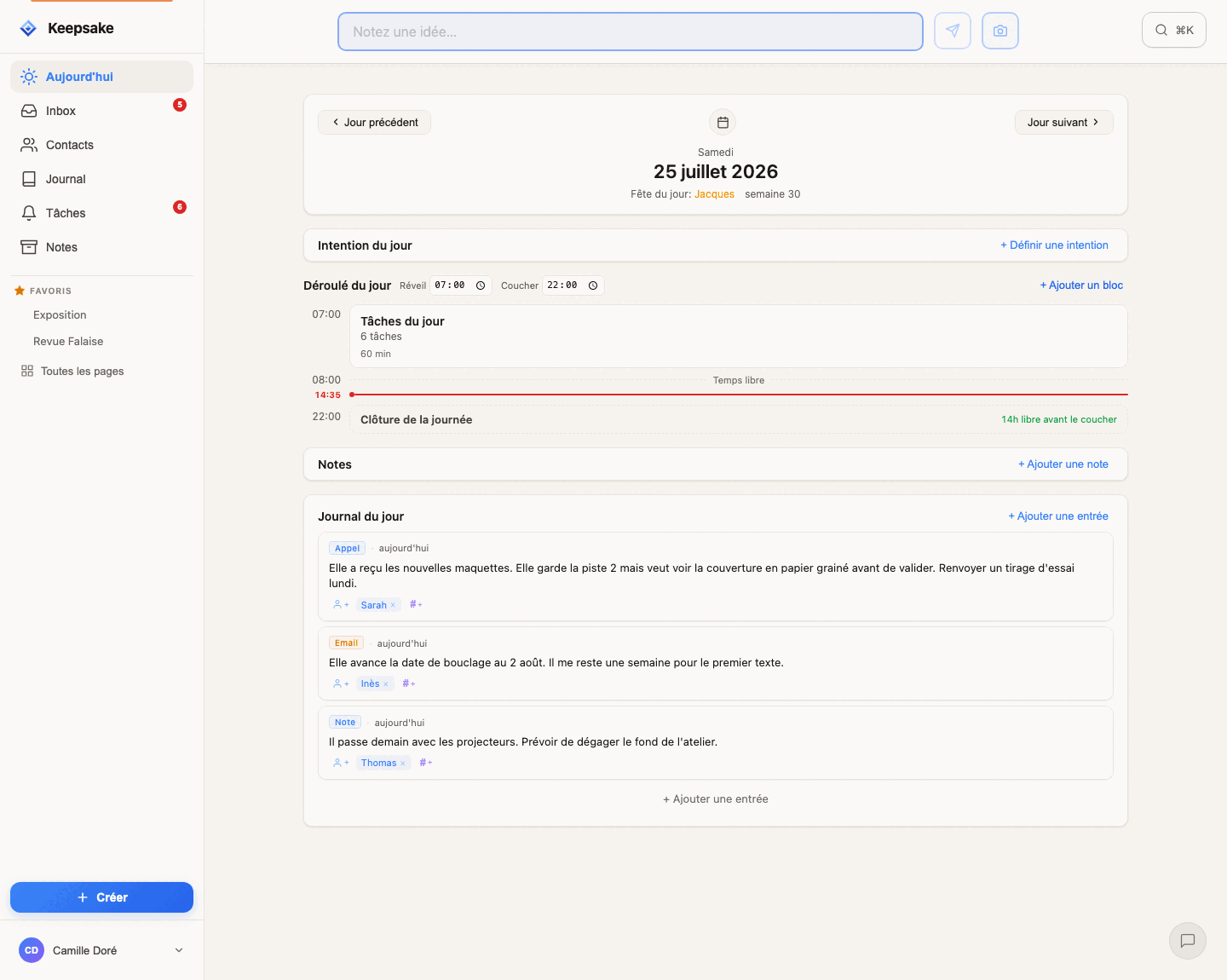
The Today and Journal views are the heart of your daily rhythm in Keepsake — so much so that the app now opens on Today. Today is your command center — where you see your tasks, set an intention for the day, and compose your day in time blocks. Journal is your timeline — a scrollable feed of everything that happened, day by day. Together, they let you start clear and finish serene.
The Today view
Your tasks for the day
All tasks scheduled for today appear here, along with overdue tasks and ASAP-priority tasks. Recurring tasks are projected automatically — no need to create them manually (and you can open a recurring task right here to adjust its recurrence settings). Complete a task by checking it off, snooze it to a later date, or reorder your list by drag & drop to match your priorities — the first task in the list is your most important one.
The Day timeline
Between your intention and the day's journal, the timeline lets you compose the day as a sequence of time blocks — with your tasks living inside a dedicated block. It deserves its own guide: see Organize your day in time blocks.
Week number
The current ISO week number is displayed at the top so you always know where you stand in the year.
Navigate to any day
Use the arrow buttons to step forward or backward one day at a time. Use the mini calendar to jump directly to any specific date. Days that already have content (tasks, notes, or entries) are marked with small dots, so you can spot busy days at a glance.
Tip
Make Today your first screen every morning. A quick glance tells you everything you need to focus on — no inbox triage, no app switching, just clarity.
The intention of the day
Set today's intention
Click "Define an intention" (or the existing intention to edit it) and type one short line. Examples: "Ship the prototype, nothing else." — "Be patient with the team." — "Less, but better." Keep it short enough to read in a glance.
Yesterday’s intention as a cue
When today's intention is empty, yesterday's appears in gray italic above the input as a gentle inspiration. You can ignore it, echo it, or set something different — it's there as a reminder of continuity, not an obligation.
See it everywhere that matters
Today's intention is visible in three places: the Day view, the Journal (under each day's header), and the right sidebar (under the week number). If today's intention is still empty, the sidebar shows a "Define an intention" link so you can set it in one click from anywhere.
Change it anytime
Intentions aren't contracts. If the day shifts and the line no longer fits, rewrite it. The goal is to stay aligned, not to keep a record of what you said at 8am.
Tip
A good intention is short, present-tense, and about you — not about the world. "Stay calm through the meeting" works better than "Have a calm meeting": you only control the first.
Birthdays & name days
Birthdays
Contacts whose birthday is today are highlighted with amber badges. Click on any name to jump directly to their contact profile.
Name days (saints du jour)
Contacts whose first name matches the French saint of the day appear in purple badges. This feature uses a built-in calendar of French name days and works automatically — no setup required.
Tip
A quick "Happy name day!" message can make someone's day — and Keepsake makes sure you never miss the occasion.
Snooze: defer tasks to later
Quick options
Tomorrow, Next Monday, In one week, 1st of next month — one tap and the task is rescheduled instantly. Perfect for things that can wait a few days.
Longer horizons
In one month, In 3 months, In 6 months, Start of next year, In one year — for things that are important but not urgent. The task will resurface exactly when you need it.
Change priority
ASAP moves the task to urgent priority (no specific date — it appears every day until done). Someday moves it to your backlog, out of the daily view but still in your task list.
Custom date
Pick any specific date from a calendar picker. Use this when none of the quick options match — for example, snoozing a task to a specific meeting day.
Tip
Snoozing isn't procrastinating — it's deciding when you'll be most effective. A task snoozed to the right day gets done faster than one sitting ignored on today's list.
The Journal view
Everything in one timeline
Entries from all contacts, tasks completed on each day, and pending tasks are all visible in a single scrollable feed, organized by day. Each day shows its intention of the day (if any) at the top, followed by entries and tasks.
Scroll to load more
The Journal initially shows the last 7 days. Keep scrolling down to load more history — as far back as you need.
Future days
Use the ^ button at the top of the Journal to reveal tomorrow or the day after. Useful for pre-planning — add an entry or a task to a future date before it arrives.
Navigate by date
Click on any day's date header to open that specific day in the Today view. Use the mini calendar at the top to jump directly to any date. Days with content are marked with dots.
Tip
Before an important meeting, scroll through the Journal to refresh your memory on recent interactions. It's the fastest way to get up to speed.
Adding content to a day
From the Today view
Use the "+ Add" button to create a new entry or task for the displayed day. The entry or task is immediately attached to that date.
From the Journal
Each day in the Journal has a + button. Click it to add an entry or task to that specific day — even past days. Forgot to log a call from last week? Scroll to that day and add it right there.
Inline editing
Entries and tasks can be edited inline without leaving the view. Click the edit icon on any card to modify its content, contacts, tags, or date.
The mini calendar
Activity dots
Days that contain content (tasks, entries, or notes) are marked with small dots below the date number. This lets you spot active days at a glance without scrolling.
Quick navigation
Click any date in the mini calendar to jump directly to that day. Use the arrows to move between months.
Shortcut
Tap the date header on the Today view to toggle the mini calendar open or closed.
Today vs. Journal — when to use which?
Starting your day?
Use Today. It shows only what matters right now: your tasks, overdue items, birthdays, and today's note. No distractions from past or future days.
Reviewing the past?
Use Journal. Scroll back through days to see what happened, what was completed, and what was logged. Great for weekly reviews or preparing for a meeting.
Adding content to today?
Either works. Both views let you create entries and tasks for the current day. Use whichever you're already looking at.
Adding content to a past or future day?
Use Journal. Scroll to the date you need and click + to add an entry or task. The Today view shows only one day at a time, so the Journal is more convenient for navigating across dates.
Questions?
Related guides
Organize your day in time blocks
Plan your day as a sequence of time blocks in Keepsake's Day timeline. Set your wake and bed times, stack blocks with durations, anchor tasks to a time — hours compute themselves and adjust as your day evolves.
Getting Started with Keepsake
Set up your Keepsake account and start organizing your relationships, notes, and tasks in minutes. A step-by-step beginner guide.
Tasks & Time Blocks: Plan Your Day Without Guilt
Learn how to manage tasks with Keepsake's unique time block system. Plan your day with sequential blocks instead of rigid schedules. Finish early? You're free. Need more time? Just shift.
Notes: Capture, Process, and Organize
Understand the full lifecycle of notes in Keepsake. From quick capture in the Inbox to archiving, transforming into tasks or entries, and finding them on contact profiles and tag pages.
Was this article helpful?
Something missing? Suggest an improvement
Ready to try Keepsake?
Start organizing your relationships, notes, and tasks today. Free for 30 days.
One click — you're in. No credit card. 30 days free.